
Creating A Painting App In JavaScript
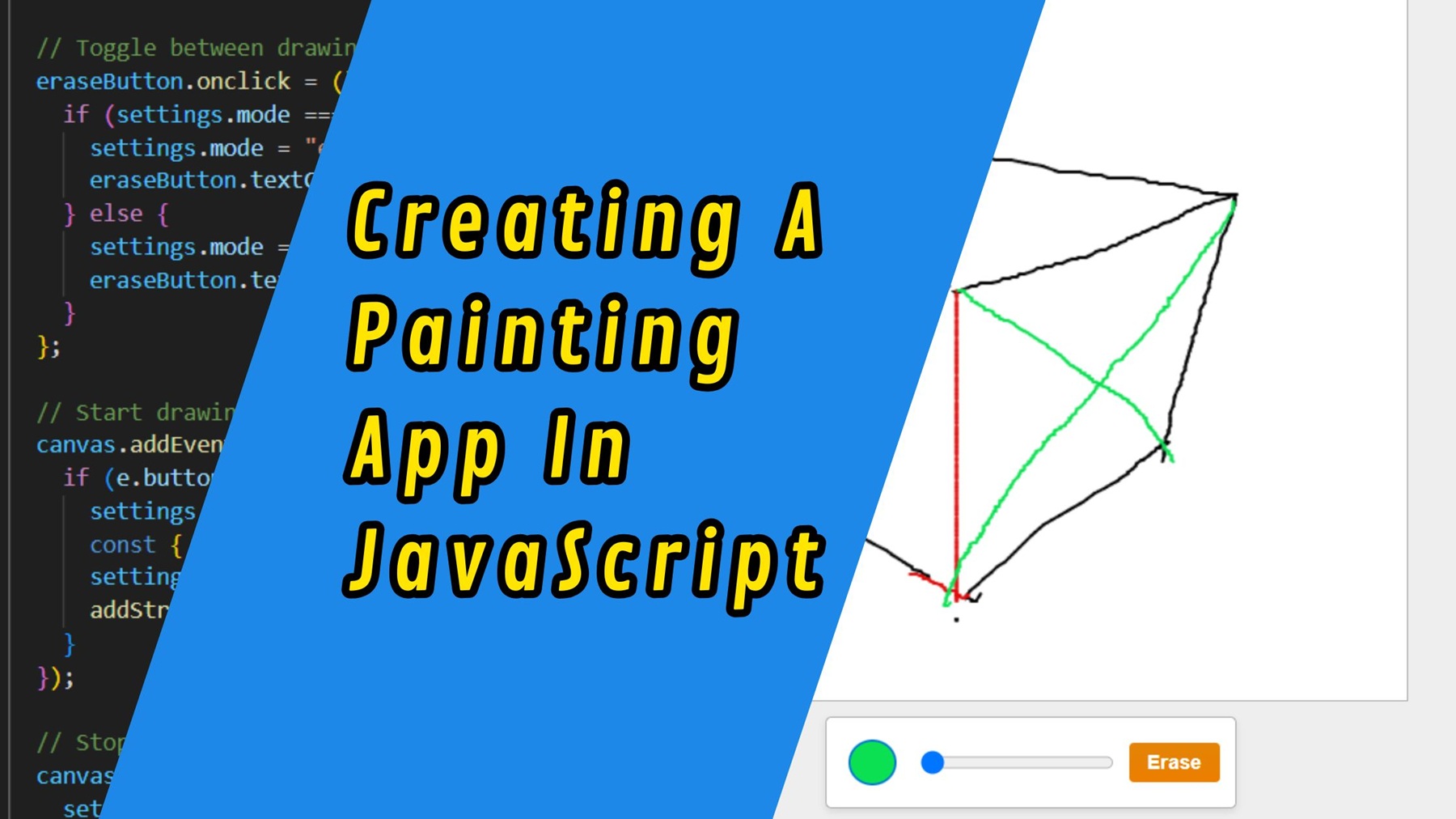
Have you ever wanted to build your own drawing application? With just a bit of HTML, CSS, and JavaScript, you can create a fully functional paint app right in your browser! In this tutorial, we will walk through a simple project that lets users draw, change brush size and color. Hopefully, by the end of this tutorial you have learnt something new about JavaScript.
Prerequisites
Before we get started, make sure you have a basic understanding of HTML, CSS, and JavaScript.
- Basic Understanding of HTML, CSS, and JavaScript: Familiarity with the fundamental concepts of HTML for structuring web pages, CSS for styling, and JavaScript for adding interactivity is essential. This tutorial assumes a basic knowledge of these languages.
- Web Browser: Use a modern web browser like Google Chrome, Mozilla Firefox, or Microsoft Edge.
For the purpose of this tutorial, you can download the source files for the demo to help you follow along:
Note: As you test the source files, ensure that you load them within a suitable environment such that all the files are loaded. For offline use, we recommend that you use Live Server and vscode to load the files. Simply open the files in Vscode and run “index.html” using Live Server.
Demo
Here is what we are going to create.
Lets breakdown the App
Our paint app includes:
- A canvas where users can draw with their mouse
- A color picker to choose brush colors
- A slider to adjust brush size
- A button to toggle between drawing and erasing
Let’s break down how it works.
Lets Get Started!
We start with a basic HTML layout that includes a <canvas> element and a toolbar with controls.
💻Creating the Basic Structure
Here is the basic html structure that we need:
<!DOCTYPE html>
<html lang="en">
  <head>
    <meta charset="UTF-8" />
    <meta name="viewport" content="width=device-width, initial-scale=1.0" />
    <title>Paint App</title>
    <style>

    </style>
  </head>
  <body>
    <!-- Main container -->
    <div>
      <!-- Drawing canvas -->
      <canvas id="canvas" width="500" height="500"></canvas>

      <!-- Controls: color picker, brush size slider, erase/draw toggle button -->
      <span>
        <input id="color" type="color" value="#000000" />
        <input id="brush" type="range" min="1" max="20" value="4" />
        <button id="erase">Erase</button>
      </span>
    </div>

    <script>


    </script>


  </body>
</html>
- Canvas: This is where all the drawing magic happens.
- Color Picker: Lets users choose their drawing color.
- Range Slider: Controls the brush size.
- Button: Toggles between drawing and erasing.
🎨 Styling the App
We used CSS to center everything on the page and make the toolbar and canvas easy to use.
Some key highlights:
- The canvas has a border and white background.
- We use custom styles for the color picker to make it look polished.
- The "Erase" button uses a gradient and hover effect to stand out.
Here’s a snippet of the CSS:
 <style>
      /* Basic layout styling for the body and div containers */
      body,
      body div {
        display: flex;
        flex-direction: column;
        justify-content: center;
        align-items: center;
      }

      /* General body styling */
      body {
        background: #eee;
        margin: 0;
        padding: 20px;
        font-family: sans-serif;
      }

      /* Canvas styling for drawing */
      canvas {
        border: 1px solid #aaa;
        background: #fff;
        cursor: none; /* Hide the default cursor */
      }

      /* Styling for the toolbar container */
      span {
        display: flex;
        flex-direction: row;
        align-items: center;
        padding: 10px;
        margin-top: 10px;
        background: #fff;
        border: 1px solid #aaa;
        border-radius: 4px;
        box-shadow: 0 2px 5px rgba(0, 0, 0, 0.1);
      }

      /* Color picker styling */
      input[type="color"] {
        width: 40px;
        height: 40px;
        border: none;
        appearance: none;
        background: none;
        cursor: pointer;
        margin-right: 10px;
      }

      /* Custom color swatch style */
      input[type="color"]::-webkit-color-swatch {
        border-radius: 50%;
        border: 2px solid #047ad4;
      }

      /* Brush size slider spacing */
      input[type="range"] {
        margin-right: 10px;
      }

      /* Erase/Draw button styling */
      button {
        background: linear-gradient(#e48405, #eb7e00);
        border: none;
        padding: 5px 12px;
        border-radius: 3px;
        cursor: pointer;
        color: white;
        font-weight: bold;
      }

      /* Button hover effect */
      button:hover {
        opacity: 0.9;
      }
    </style>
⚙️Lets Make Things Work Using JavaScript
The JavaScript handles all user interaction and rendering logic
🎯 Initialization: DOM Elements, Variables, and Settings
Before the drawing begins, we need to grab our DOM elements and set up some configuration for how the app will behave. This includes getting references to the canvas, setting default values for brush size and color, and creating a structure to store the drawing history.
const canvas = document.getElementById("canvas");
const ctx = canvas.getContext("2d");

const colorInput = document.getElementById("color");
const brushInput = document.getElementById("brush");
const eraseButton = document.getElementById("erase");

const drawing = []; // Stores all drawing strokes

const settings = {
  mode: "drawing", // can also be "erase"
  brush: 4, // brush size in pixels
  color: "#000", // default black color
  mouse: { x: null, y: null }, // current mouse position
  is_drawing: false, // is the user currently drawing?
  previousMouse: null, // last known mouse position
};
✏️ Drawing Essentials: drawLine, drawDot, and drawCursor
Let’s talk about the core drawing logic. These functions handle visual rendering on the canvas : lines, individual points (dots), and even a custom cursor to replace the default mouse pointer.
1.drawLine function
This function draws a continuous stroke between two points