Learn How to Create a Simple Web Browser
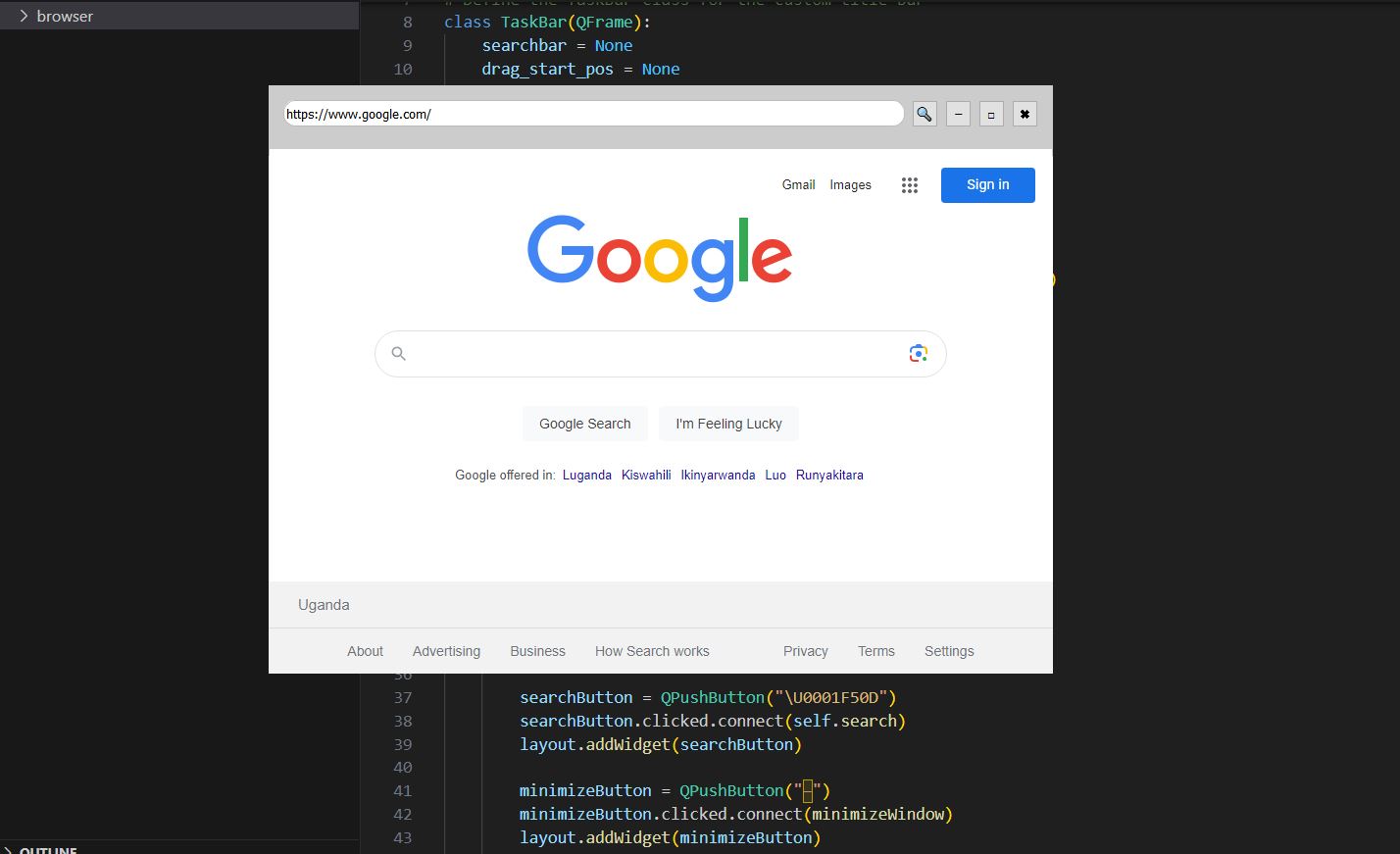
In this tutorial, we will create a simple web browser using PySide2, a Python binding for the Qt framework. The web browser will have basic functionality such as navigating to websites, a custom title bar, and the ability to minimize, maximize, and close the window.
If you are new to Python programming, feel free to check out our python tutorials to get you started.
Prerequisites
Before we start, ensure you have the following:
- Python installed on your system.
- PySide2 library installed. You can install it using pip:
pip install PySide2Getting Started
Let’s break down the key components of this code:
- We import the necessary modules from PySide2.
- We create a custom title bar using the
TaskBarclass, which inherits fromQFrame. The title bar includes a search bar, search button, minimize button, maximize button, and close button. - The
searchmethod is responsible for loading the entered URL in theQWebEngineView. It checks if the URL starts with “http://” and adds it if not. - The
updateUrlmethod updates the text in the search bar with the current URL of theQWebEngineView. - The
mousePressEventandmouseMoveEventmethods handle window dragging when the user clicks and drags the title bar. - In the
Browserclass, we set up the main window and create the web browser’s interface. This includes aQWebEngineViewfor displaying web content and aTaskBarfor the custom title bar. - The
addStylemethod sets the stylesheet for styling the window, title bar, and other UI elements. - Finally, we define functions for window actions like minimizing, maximizing, and closing the window.
Let’s start by creating a basic structure for our web browser. Save the following code in a Python file (e.g., web_browser.py):
from PySide2.QtGui import *
from PySide2.QtCore import *
from PySide2.QtWidgets import *
from PySide2.QtWebEngineWidgets import QWebEngineView
import sys

# Define the TaskBar class for the custom title bar
class TaskBar(QFrame):
    searchbar = None
    drag_start_pos = None
    window = None

    def __init__(self, window):
        super(TaskBar, self).__init__()
        self.window = window
        self.display()

    def updateUrl(self):
        self.searchbar.setText(self.window.view.url().toString())

    def search(self):
        url = self.searchbar.text()

        if not url.startswith('http://'):
            url = 'http://' + url
        self.window.view.setUrl(QUrl(url))

    def display(self):
        layout = QHBoxLayout()
        layout.setMargin(0)
        layout.setAlignment(Qt.AlignTop)

        inputBox = QLineEdit("http://www.google.com")
        self.searchbar = inputBox
        layout.addWidget(inputBox)

        searchButton = QPushButton("\U0001F50D")
        searchButton.clicked.connect(self.search)
        layout.addWidget(searchButton)

        minimizeButton = QPushButton("−")
        minimizeButton.clicked.connect(minimizeWindow)
        layout.addWidget(minimizeButton)

        maximizeButton = QPushButton("\u25A1")
        maximizeButton.clicked.connect(maximizeWindow)
        layout.addWidget(maximizeButton)

        cancelButton = QPushButton("\u2716")
        cancelButton.clicked.connect(cancelWindow)
        layout.addWidget(cancelButton)

        self.setLayout(layout)

    def mousePressEvent(self, event):
        if event.button() == Qt.LeftButton:
            self.drag_start_pos = event.globalPos() - window.pos()
        event.accept()

    def mouseMoveEvent(self, event):
        if event.buttons() == Qt.LeftButton:
            if self.drag_start_pos:
                new_pos = event.globalPos() - self.drag_start_pos
                window.move(new_pos)
        event.accept()


class Browser(QMainWindow):
    view = None

    def __init__(self):
        super(Browser, self).__init__()
        self.setMinimumSize(QSize(800, 600))
        self.setWindowTitle("Browser")
        self.setWindowFlag(Qt.WindowTitleHint, False)
        self.setWindowFlag(Qt.FramelessWindowHint, True)
        self.display()
        self.show()

    def display(self):
        mainWidget = QWidget()
        self.setCentralWidget(mainWidget)

        layout = QVBoxLayout()
        layout.setMargin(0)
        mainWidget.setLayout(layout)

        taskbar = TaskBar(self)
        layout.addWidget(taskbar)

        webView = QWebEngineView()
        webView.sizePolicy().setVerticalPolicy(QSizePolicy.Expanding)
        webView.loadFinished.connect(taskbar.updateUrl)
        webView.urlChanged.connect(taskbar.updateUrl)
        layout.addWidget(webView)
        self.view = webView

        taskbar.search()

        self.addStyle()

    def addStyle(self):
        style = '''
        QMainWindow{
        background:#fff;
        border:1px solid #ccc;
        }
        QFrame{
        padding:15px;
        background:#ccc;
        max-height:35px;
        }
        QLineEdit{
        border-radius:12px;
        height:25px;
        border:1px solid #bbb;
        }
        QWebEngineView{
        height:100%;
        }
        QPushButton{
        max-width:25px;
        }
        '''

        self.setStyleSheet(style)

# Define functions for window actions
def cancelWindow():
    App.quit()

def maximizeWindow():
    if window.isMaximized():
        window.showNormal()
    else:
        window.showMaximized()

def minimizeWindow():
    window.showMinimized()

if __name__ == "__main__":
    App = QApplication()
    window = Browser()
    sys.exit(App.exec_())
Explanation
Let’s break down the code block by block and explain the purpose of each part:
from PySide2.QtGui import *
from PySide2.QtCore import *
from PySide2.QtWidgets import *
from PySide2.QtWebEngineWidgets import QWebEngineView
import sys- In this section, we import the necessary modules and classes from PySide2. Here’s what each import statement does:
from PySide2.QtGui import *: Imports various GUI-related classes and functions.from PySide2.QtCore import *: Imports core functionality, including Qt enums and types.from PySide2.QtWidgets import *: Imports widgets and layout managers.from PySide2.QtWebEngineWidgets import QWebEngineView: Imports theQWebEngineViewclass, which allows us to display web content in our application.import sys: Imports thesysmodule for handling system-related functionality.
# Define the TaskBar class for the custom title bar
class TaskBar(QFrame):
    searchbar = None
    drag_start_pos = None
    window = None
- Here, we define the
TaskBarclass, which is responsible for creating the custom title bar. The class has three class-level attributes:searchbar,drag_start_pos, andwindow.
    def __init__(self, window):
        super(TaskBar, self).__init__()
        self.window = window
        self.display()
- The
__init__method is the constructor of theTaskBarclass. It initializes the title bar and sets thewindowattribute, which refers to the main application window.
    def updateUrl(self):
        self.searchbar.setText(self.window.view.url().toString())
- The
updateUrlmethod updates the text in the search bar (the URL input field) with the current URL of the web view in the main application window.
    def search(self):
        url = self.searchbar.text()

        if not url.startswith('http://'):
            url = 'http://' + url
        self.window.view.setUrl(QUrl(url))
- The
searchmethod is called when the user clicks the search button. It retrieves the text from the search bar, checks if it starts with “http://” (to ensure it’s a valid URL), and then loads the URL in the web view.
    def display(self):
        layout = QHBoxLayout()
        layout.setMargin(0)
        layout.setAlignment(Qt.AlignTop)
- The
displaymethod sets up the layout of the custom title bar. It creates a horizontal layout (QHBoxLayout) and adjusts its properties, such as margins and alignment.