
Creating Your First JavaScript Game: A Step-by-Step Tutorial
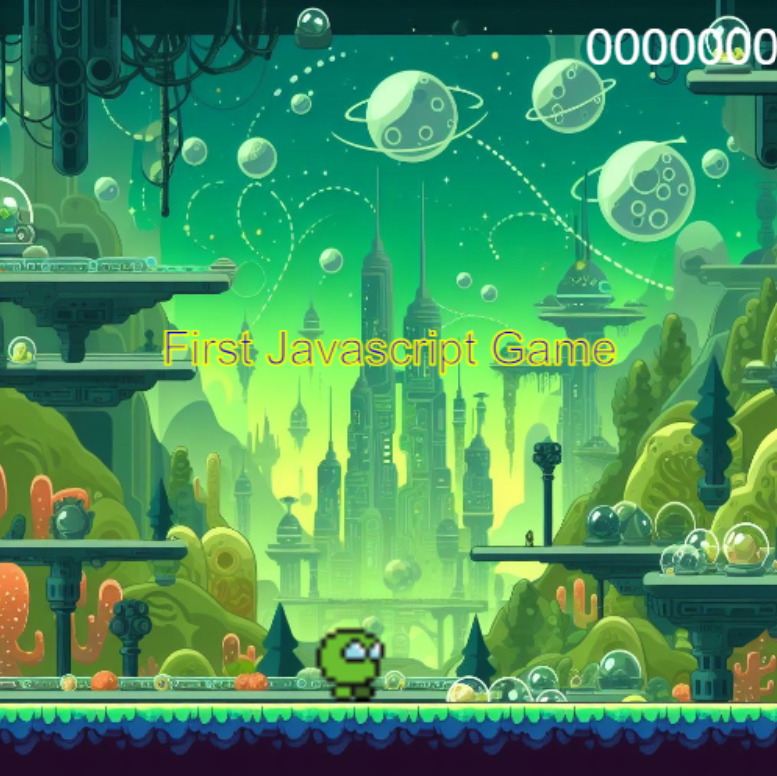
Welcome to this JavaScript game development tutorial! In this tutorial, we’ll walk through creating a simple game using HTML canvas and JavaScript. By the end, you’ll have built a basic game where a player character jumps over obstacles to score points.
Game development, particularly in JavaScript, offers a wealth of benefits and opportunities. According to recent statistics, the global gaming market is projected to reach $286.61 billion in 2024, indicating significant growth and demand. Therefore, mastering game development will not only give you valuable skills transferable to various industries, but also make it a rewarding and versatile pursuit in today’s digital era.
Prerequisites
Before we get started, make sure you have a basic understanding of HTML, CSS, and JavaScript.
- Basic Understanding of HTML, CSS, and JavaScript: Familiarity with the fundamental concepts of HTML for structuring web pages, CSS for styling, and JavaScript for adding interactivity is essential. This tutorial assumes a basic knowledge of these languages.
- Web Browser: Use a modern web browser like Google Chrome, Mozilla Firefox, or Microsoft Edge .
For the purpose of this tutorial, you can download the source files for the game to help you follow along:
Note: As you test the source files, ensure that you load them with in a suitable environment such that all the files are loaded. For offline use, we recommend that you use Live Server and vscode to load the files. Simply open the files in Vscode and run “index.html” using Live Server.
Demo
Here is what we are going to create. This is a simple infinite runner game where the player jumps to dodge obstacles. Press “W” for the player to jump.
Setting Up the Project
Let’s start by setting up the basic structure of our game. Create an html called “index.html”, with a basic html web format, and add some adds for canvas element to draw the game and button to play the game.
Also add some tags for the css in the header (link tag) , and a script tag for our javascript code.
<!DOCTYPE html>
<html lang="en">
<head>
    <meta charset="UTF-8">
    <meta name="viewport" content="width=device-width, initial-scale=1.0">
    <link rel="stylesheet" href="web.css" type="text/css">
    <title>First Javascript Game</title>
</head>
<body>
    <div class="main">

            <canvas width="500px" height="500px" id="canvas"></canvas>
            <span class="actions">
                <button class="button" id="button" onclick="Play();">Play</button>
            </span>


    </div>

    <script type="text/Javascript" src="app.js">
</body>
</html>
Now create a css file called “web.css”, to add some basic css style as shown below.
body{
    display: flex;
    flex-direction: row;
    flex-wrap: nowrap;
    justify-content: center;

}
.main{
    display: flex;
    flex-direction: column;

    margin-top: 50px;
}
.actions{
    display: flex;
    flex-direction: row;
    flex-wrap: nowrap;
    justify-content: center;
    margin-top: 10px;
}
.button{
    border-radius: 4px;
    background: rgb(76, 230, 140);
    font-size: 18px;
    font-family: Arial;
    font-weight: bold;
    cursor: pointer;
    padding-inline: 20px;

}
.button:hover{
    background: rgb(159, 239, 145);
}
JavaScript Code
Now, let’s dive into the JavaScript code to create our game. We’ll break down the code into several sections:
1. Setting Up Game Variables and Constants
We start by getting a reference to the canvas element and setting up some variables. Here we also create a variable “objects” used to update the objects or sprites drawn on the game screen as well as a constant for the gravity in the game.
const canvas = document.getElementById("canvas");
const gl=canvas.getContext("2d");
const canvas_width=canvas.width;
const canvas_height=canvas.height;

var objects=[];
const gravity=6;
Lets also add some variables for the player such as the size, height to jump and animations. The playerAnimationCount stores the length of each animation for the player, and the animationFrame is used to track which sprite is shown at each of the animation.
//game variables
var player=null;
const player_width=50;
const player_height=50;
const player_tile_size=[16,16];
const playerAnimationCount={
    idle:6,
    run:8
}
const jumpHeight=150;
var animationFrame=0;
Lets also some settings for the platform where the player stands
//settings for the game platforms
const platform_height=50;
const  platform_width=100;
2. Loading Game Assets
Lets also create an object to store and load our images for the game:
//image assets